Open only the entry you need
Search and pin catalog IDs. Only selected detail content loads; opening the library runs no host checks.
Which optional tool does this task need?
Stable · v0.7.0Search and pin catalog IDs. Only selected detail content loads; opening the library runs no host checks.
Use host-specific vendor guidance. Install separately; request one metadata-only host check when needed.
Open a native workbench, merge a client fragment or prepare an unsent draft. Guided entries do not execute vendors.
Published v0.7.0: Extensions contains 20 optional entries: six native workbenches and fourteen guides or links with explicit integration levels. It replaces the Publish destination in the six-part layout: Home, Inspect, Network, Extensions, Files and Settings. Older v0.6.1 binaries retain their earlier layout. Native-client, account and independently promoted package acceptance remain separate from release availability.
Open Extensions at /extensions, search for a task or tool, and select one entry. Pin the entries you use to keep them close in this library. Pins and manual setup-platform choices store only catalog and platform IDs in this browser, without addresses, credentials, pairing data or results.
Opening the catalog does not inspect tools or load every detail pack. The selected entry’s details load when you open it. Choose Check this host for one local availability observation. It checks this process’s PATH and reviewed fixed locations without executing the selected tool. aria2 may also read and verify an existing cached bundle checksum. Detection does not start a process, scan, capture, sign-in flow, model download or service. Cancelling a slow check detaches the browser; an OS filesystem lookup already waiting may still finish.
In current source, choose Guide to walk through the selected tool. The tour shows the controls and prerequisites for the tool you have open. Current release recipes use the lightweight Windows x64 build. Install aria2 on demand or supply its verified offline ZIP beside the executable. The release recipes attach the Windows aria2 ZIP separately under its expected name. A previously prepared v0.7.0 engine can be reused after verification. Published v0.7.0 embeds the fallback. The Store package builder pairs a lightweight Windows release with its verified offline ZIP inside the MSIX. This keeps the Store download usable offline when the app folder is read-only. See the offline build instructions.
Setup applies to the machine running ProtoPeek, which may differ from the machine displaying your browser. A remote server or container needs its own accessible tools. Guidance uses the host operating system and points to official installation instructions.
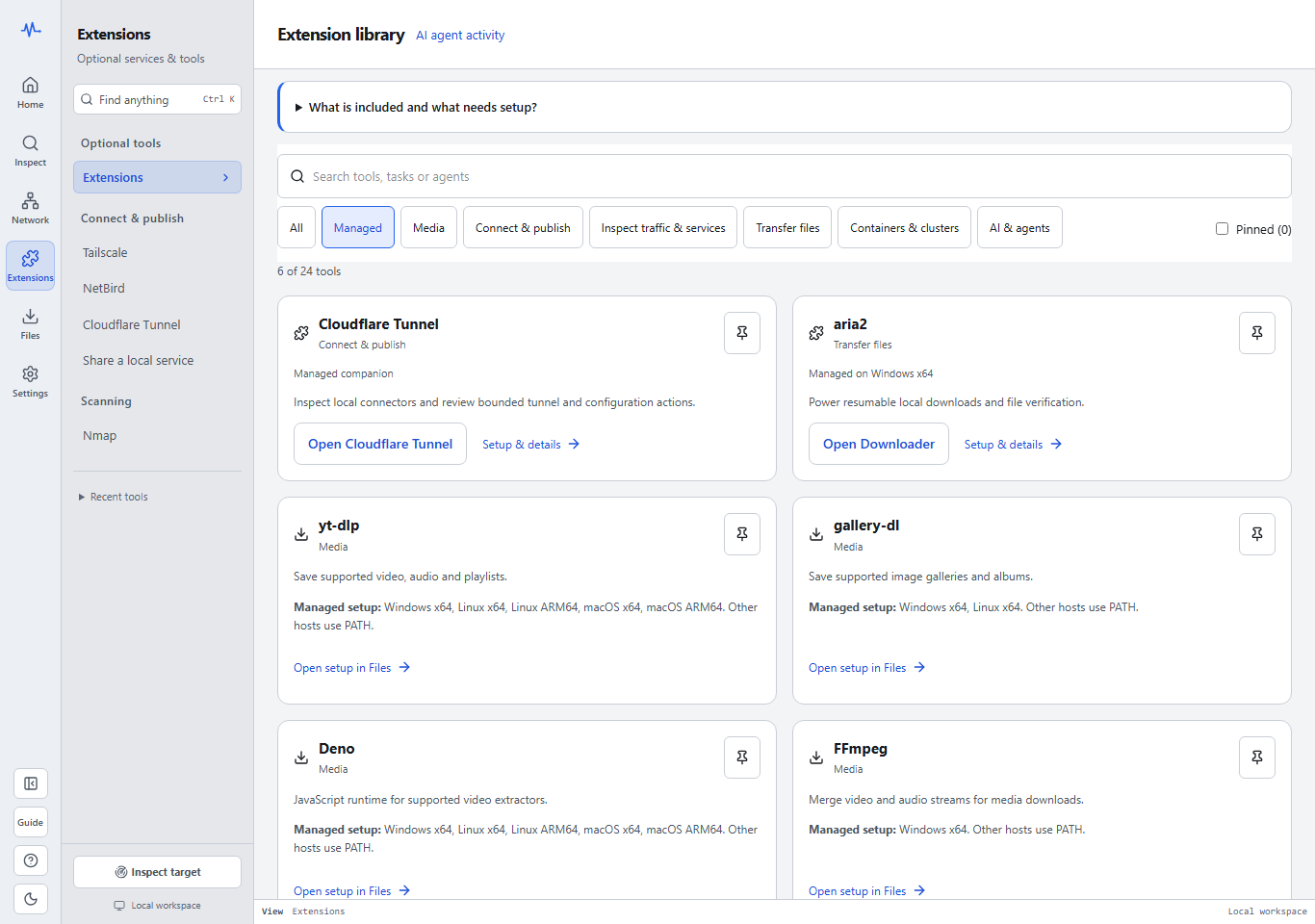
The current library has 24 entries. The Media filter opens yt-dlp, gallery-dl, Deno or FFmpeg directly in its Files setup. Each entry lists the hosts with pinned builds. In Files you can install the selected tool, use it, and remove its verified managed copy. Video setup shows its selected helpers and combined download size. Stop active media jobs before removal.
Open Cloudflare Tunnel or aria2 in Extensions and check the companion status. Review the version and install size, then confirm installation. Cloudflared downloads on request from its pinned release on Windows x64, Linux amd64/arm64 and macOS amd64/arm64. Its local binary can inspect a connector; on Windows and Linux it can also power an explicitly started Quick Tunnel. Temporary publishing remains unavailable on macOS. Publishing a service is a separate action. On Windows x64, aria2 prepares the archive for Downloader. Lightweight builds can download the pinned archive on request or use a sidecar supplied for offline setup. Once installed, open the associated workbench. Stop active use before choosing Remove companion. If a cached aria2 archive changes, Repair companion preserves it in quarantine and downloads a verified replacement. Files offers Repair setup for a partial media installation when its remaining files can be verified.
The terminal uses the same local installation and returns JSON:
pp extensions status --json
pp extensions status cloudflared
pp extensions install cloudflared
pp extensions remove cloudflared
Inventory covers all six managed companions. Media installs can add missing supported helpers for yt-dlp. CLI media changes require the Files queue to be free. If the workbench owns the queue, use Files there or close the workbench before the CLI operation. A paired agent can inspect this inventory with managed_tools. Use the published release instructions above when running v0.7.0.
Native workbench means a bounded operational adapter with its own evidence and action controls. It does not prove that your installed tool, account, permissions or endpoint are ready.
| Group | Tool | What it enables | Existing workbench |
|---|---|---|---|
| Optional services | Tailscale | Installed-client peers, accounts, connection diagnostics, reviewed local controls and Taildrop | /network/tailnet |
| Optional services | Cloudflare Tunnel | Local cloudflared service, configuration and route evidence, with guarded service controls | /tunnels |
| Optional services | NetBird | Native installed-client evidence and bounded reviewed actions; account setup stays in NetBird | /extensions/netbird |
| Network tools | Wireshark capture | A bounded live capture through the installed dumpcap executable | /network/packets?mode=live |
| Network tools | Nmap | Bounded TCP connect or light service detection with explicit scope | /network/nmap |
| Transfers | aria2 | The local engine used by resumable HTTP(S) downloads | /downloader |
Open a card to see its requirements and supported actions. Install a managed companion through its setup controls. For a VPN client, capture driver or externally managed CLI, use the listed vendor installer or host package manager, then return to the entry and check the host.
These entries are useful setup and handoff paths, not fourteen additional native adapters. Command examples are static text to review, copy and run yourself. ProtoPeek does not execute them, install packages, start services or authenticate with vendors.
| Entry | Integration level | Useful next step |
|---|---|---|
| Caddy | Command guide | Inspect existing loopback reverse-proxy upstreams through an unsent HTTP draft; no Caddy config writes |
| ngrok | Command guide | Review a public endpoint recipe requiring your vendor account; no ProtoPeek-owned tunnel |
| OpenSSH | Command guide | Start your own authorized loopback-only forward, then inspect its local HTTP endpoint |
| Docker | Command guide | Find an existing container’s host-mapped port, then prepare an HTTP request |
| Podman | Command guide | Inspect your own container mapping; macOS/Windows also need their native Podman machine |
| kubectl | Command guide | Review an authorized loopback port-forward; cluster/context/namespace stay user-owned |
| OpenSSL | Command guide | Compare native certificate/TLS observations; built-in TLS diagnostics remain available |
| Codex CLI | MCP setup | Merge a generated local MCP fragment from AI agent setup |
| Claude Code | MCP setup | Merge the fragment, then review and approve protopeek in your trusted project |
| Gemini CLI | MCP setup | Merge the mcpServers fragment; if folder trust is enabled, trust your project before connecting |
| OpenCode | MCP setup | Merge the local command-array and environment fragment |
| Ollama | Endpoint guide | Prepare an unsent loopback /api/tags request for your running local server |
| LM Studio | Endpoint guide | Prepare an unsent loopback /v1/models request for your running local server |
| ChatGPT web | External link | Open a companion guide and fixed prompt containing no service evidence |
Every example endpoint is an unsent draft. Verify the actual host port before Send; a forwarded, guest or container port can differ from its host mapping. Never publish the Caddy admin port or the Ollama/LM Studio model-server ports. Caddy’s example reads GET /reverse_proxy/upstreams, not the full /config/ document. The guide does not create a reverse proxy or change its configuration. Use the existing reviewed publishing workbench for supported exposure operations, with its explicit audience and native acceptance requirements.
For AI clients, pair the local workbench through 127.0.0.1, choose the client format, and merge the generated fragment into its named configuration file. Do not replace unrelated settings or paste a pairing token into chat. Formats were checked against vendor docs on 23 October 2026; actual installed-client and account acceptance remain separate.
ChatGPT web does not read local Codex configuration, and this library supplies no direct web stdio connector, hosted account or public MCP relay. Its fixed companion prompt contains no addresses, headers or results. The Codex CLI entry covers the separate local stdio workflow; ChatGPT web does not read that configuration. Ollama/LM Studio installation, model download/loading and server startup are separate native actions; no model is downloaded by opening this library.
| Status | Meaning |
|---|---|
| Not checked | No availability observation was requested for this entry. |
| Detected | An executable was found in a supported location. It has not been run by this check. |
| Included | This build supplies the tool as a fallback; another installation may take priority. |
| Not found | The named CLI was not found on this process’s PATH or the listed locations; this is not proof the application is uninstalled. |
| Unavailable | Detection could not be completed on this host. Read the reported reason. |
Detected does not mean ready. Tailscale can still need sign-in, a service can be stopped, and dumpcap can lack capture permission. Open the relevant workbench for its actual capabilities and observations. Installation detection and operational evidence remain separate.
Checks describe the CLI and locations searched. If you installed a tool after starting ProtoPeek, restart ProtoPeek so its process receives the updated PATH, then check again. LM Studio checks the lms CLI rather than declaring whether its desktop app is installed. ChatGPT web is an external link and has no executable check.
Slow filesystem lookups share two slots, including the legacy six-tool API. A busy host check returns HTTP 429 with retry guidance. Cancel stops waiting (499); a lookup already inside the OS retains its slot until it returns. Static catalog metadata and ChatGPT’s external guidance remain available without filesystem slots. On macOS, native workbenches retain their own supported executable locations; keeping Homebrew’s bin directory on ProtoPeek’s PATH lets the native tool and its availability check use the same command.
Install Tailscale using its official download page and the Windows, macOS, or Linux instructions. Complete sign-in through the installed Tailscale client, then open its ProtoPeek workbench and choose Inspect Tailscale. ProtoPeek uses the installed client; it does not provide the private-network service itself.
Use Cloudflare's cloudflared downloads for the tunnel connector. Its ProtoPeek workbench inspects the local host and canonical service. Current source can install a pinned cloudflared companion from Extensions. For published v0.7.0, install the connector through the vendor first. Sign-in and account setup take place in Cloudflare. v0.7.0 configuration writes require the supported user-owned canonical file, a fresh revision and explicit review. See the Cloudflare Tunnel guide for supported controls and configuration authority. Wrangler and Docker availability are diagnostic details, not additional working adapters.
The Tailscale workbench retains its separate Headscale HTTPS login-server flow; this library does not administer a Headscale server. Use NetBird’s official installation guide for its native client and daemon, complete sign-in there, then inspect it through the NetBird workbench. Temporary Serve/Funnel/Quick Tunnel sessions have their own reviewed audience and lifecycle controls. v0.7.0 foreground publishing uses its guarded Windows/Linux path; macOS foreground publishing remains unavailable.
Install Wireshark, which supplies the dumpcap capture utility. ProtoPeek uses dumpcap for bounded local captures; Wireshark remains useful for deeper analysis of original files.
ProtoPeek does not install drivers or change capture permissions. After setup, open the capture workbench to inspect available interfaces. An explicit Start capture action begins a bounded run. It observes traffic visible to the selected interface, not every packet on the network. Live capture acceptance still depends on the host's driver and permission setup.
Use the official Nmap download and installation guide, then open its workbench and review the target and ports. ProtoPeek supports bounded TCP connect and light service detection. These modes use ordinary TCP sockets; executable detection does not run a scan. See Nmap scope and evidence limits.
The Downloader uses aria2. Check the engine in Files → Downloader to see which executable the host selected. A configured executable or one on PATH can serve the workbench. Published v0.7.0 includes a Windows x64 fallback. The current lightweight Windows x64 package can install a verified companion from Extensions, use an adjacent offline ZIP, or reuse a verified cache prepared by v0.7.0. Official aria2 releases.
Stop active jobs and close other ProtoPeek processes before repairing or removing a companion. If a media file fails verification, Files and the CLI give the affected version folder. Move that folder to a location you control after inspecting its contents, then retry setup. Repair keeps modified aria2 data in a separate quarantine location. An interrupted install can leave staging files in the tool's cache or configuration folder. You can review these manually after closing ProtoPeek. Keep unknown files until you identify them.
HTTP and gRPC inspection, this-device evidence, Nearby devices, built-in TCP port checks, supported native hop tracing, saved network maps and bounded capture-file reading work without these optional tools. Opening a PCAP/PCAPNG file stays under Network → Packets and does not require Wireshark, dumpcap or Npcap.
Headscale administration, integrated sign-in/elevation and automatic tool installation remain outside these adapters. Existing AI agent setup remains under Settings; a setup entry does not require a new ProtoPeek plugin or background service.